 ChipRoom
Guide
Here's how to use ChipRoom: one guide for the host who sets up the chips, and one for players who join. Nothing here is complicated — follow the steps in order and you're set.
For hosts: from setting up chips to your next game
Seven steps, in the order the screens actually appear.
-
1. Set up the chips
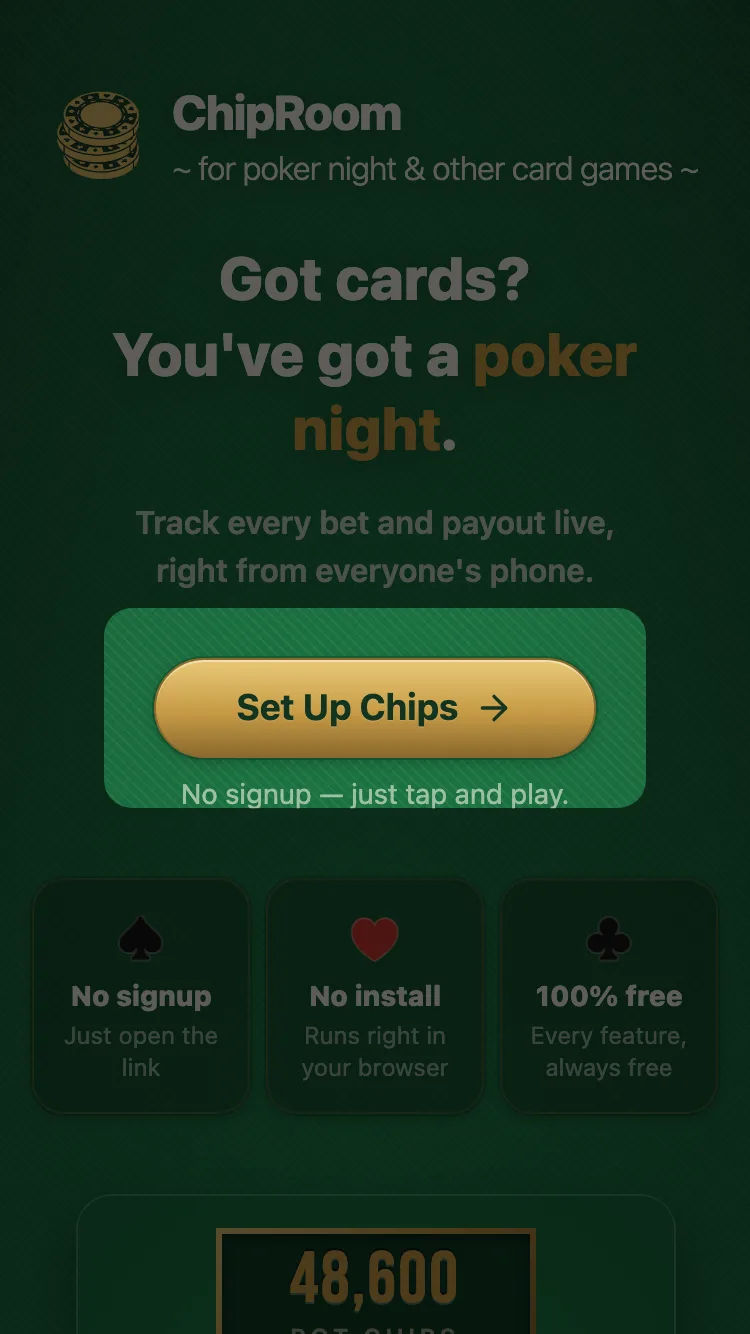
Open the setup screen from "Set Up Chips" on the homepage, or the same link in the footer. This single screen covers everything from adding players to setting the starting chip count. What you create here is called a "room", and the rest of this guide uses that word.
-
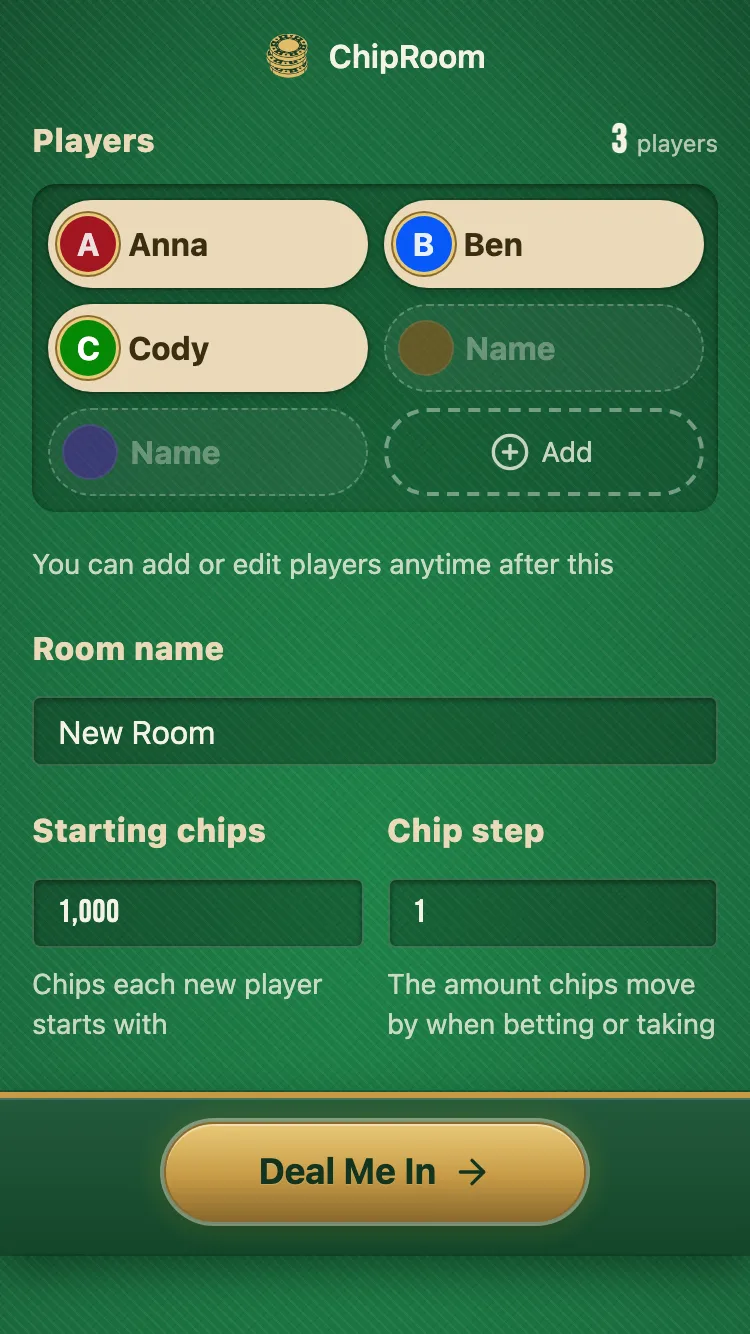
2. Set player names and chips
Enter a name for each player under "Players" (tap "Add" for more). Then set a Room Name, Starting Chips (how many chips each player begins with), and Chip Step (the amount chips move by each tap), and tap "Deal Me In" to create the room. You can add or edit players anytime later, so it's fine to start before the guest list is final.
-
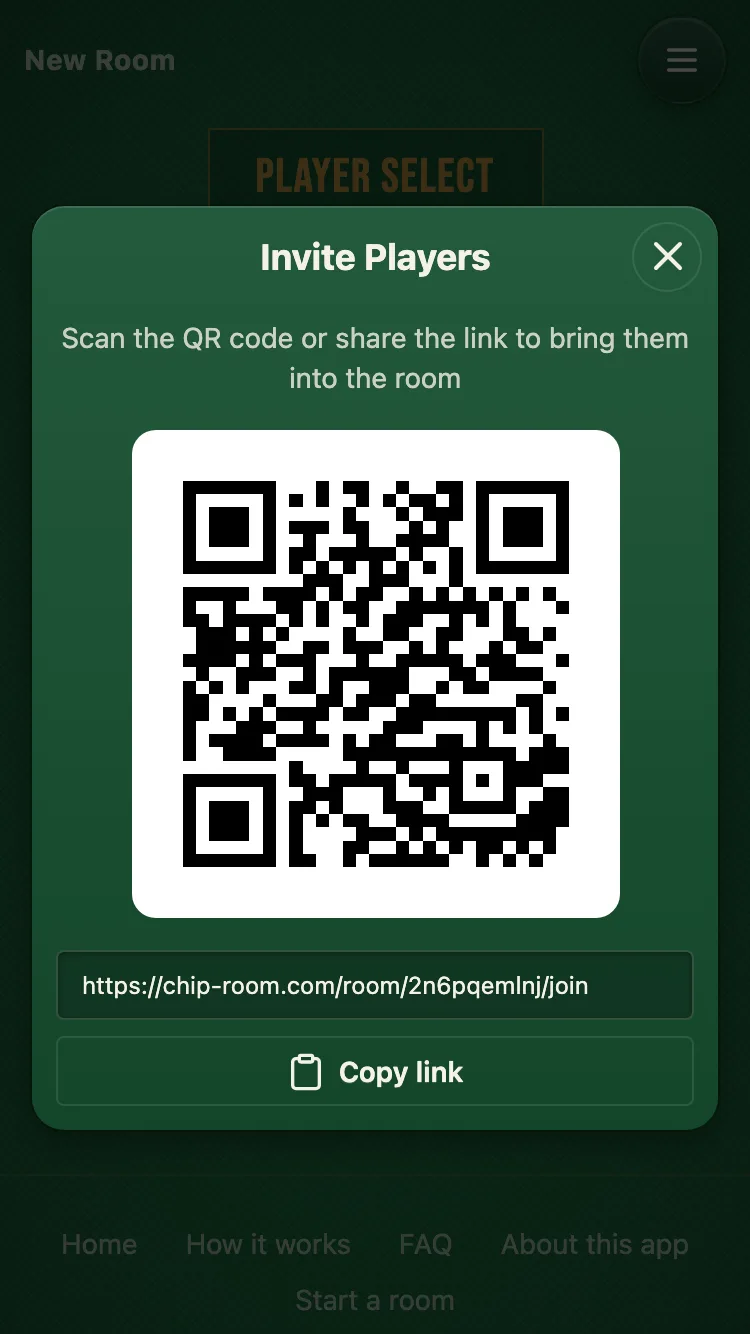
3. Share the room URL
Creating the room opens an invite screen with a QR code and a shareable URL. Have your friends scan the code, or send the link with "Copy Link" or "Share". You can reopen this screen anytime from "Invite Players" in the menu.
-
4. Pick your own player
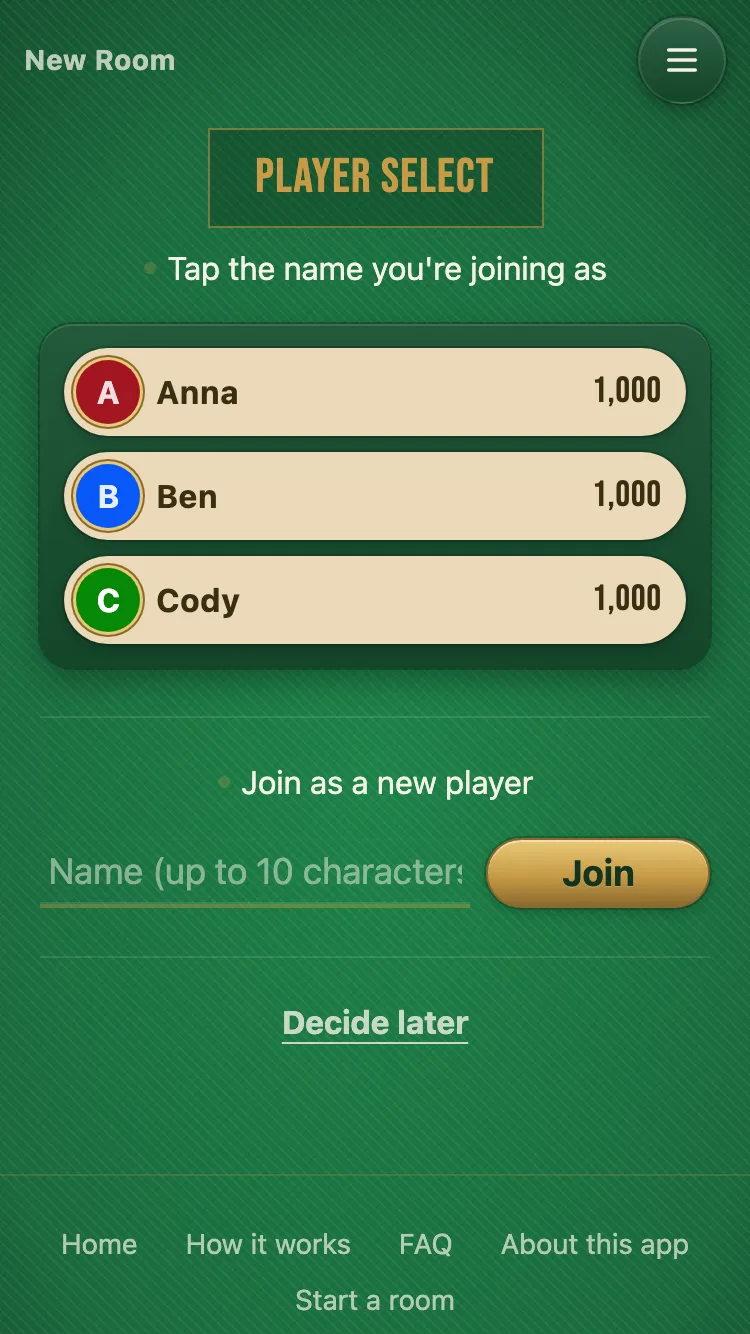
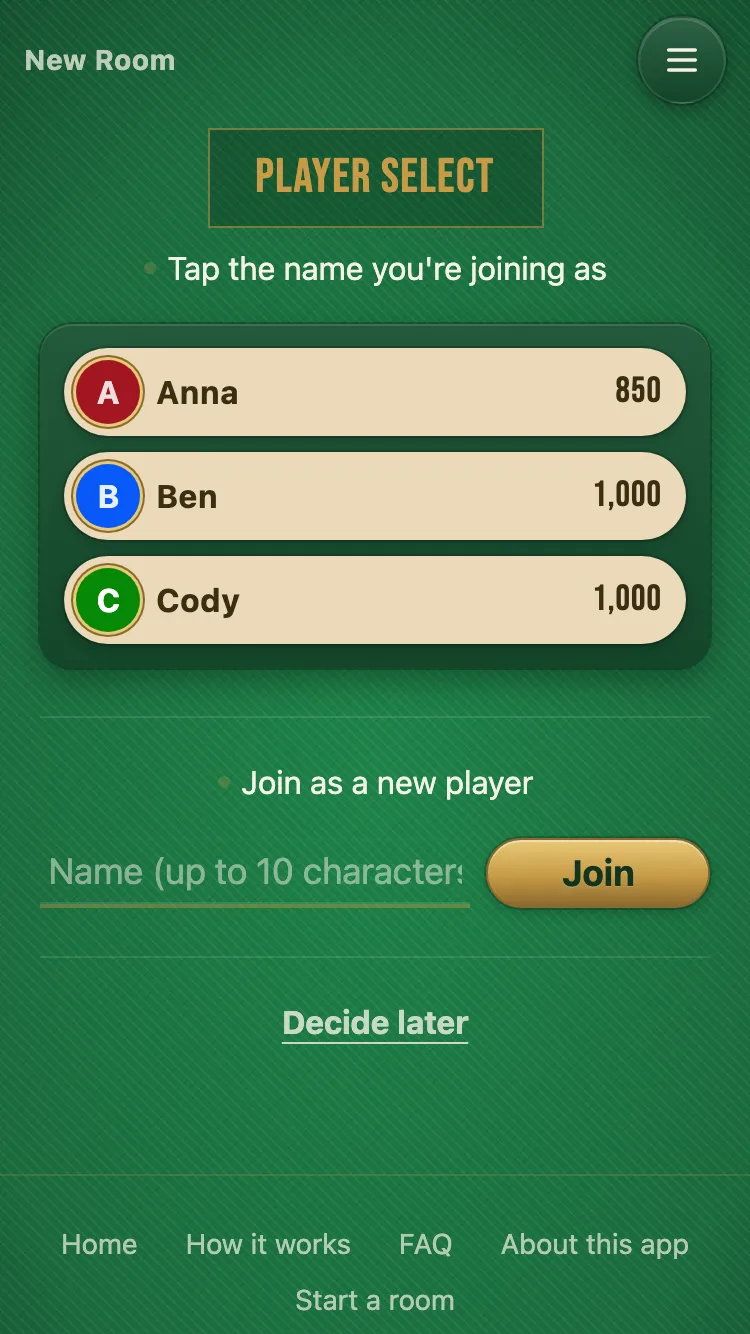
Closing the invite screen (or tapping "I'll pick later") shows the player-select screen. Tap your own name from the list you entered in step 2. If it isn't there yet, add it on the spot with "Join as a new player".
-
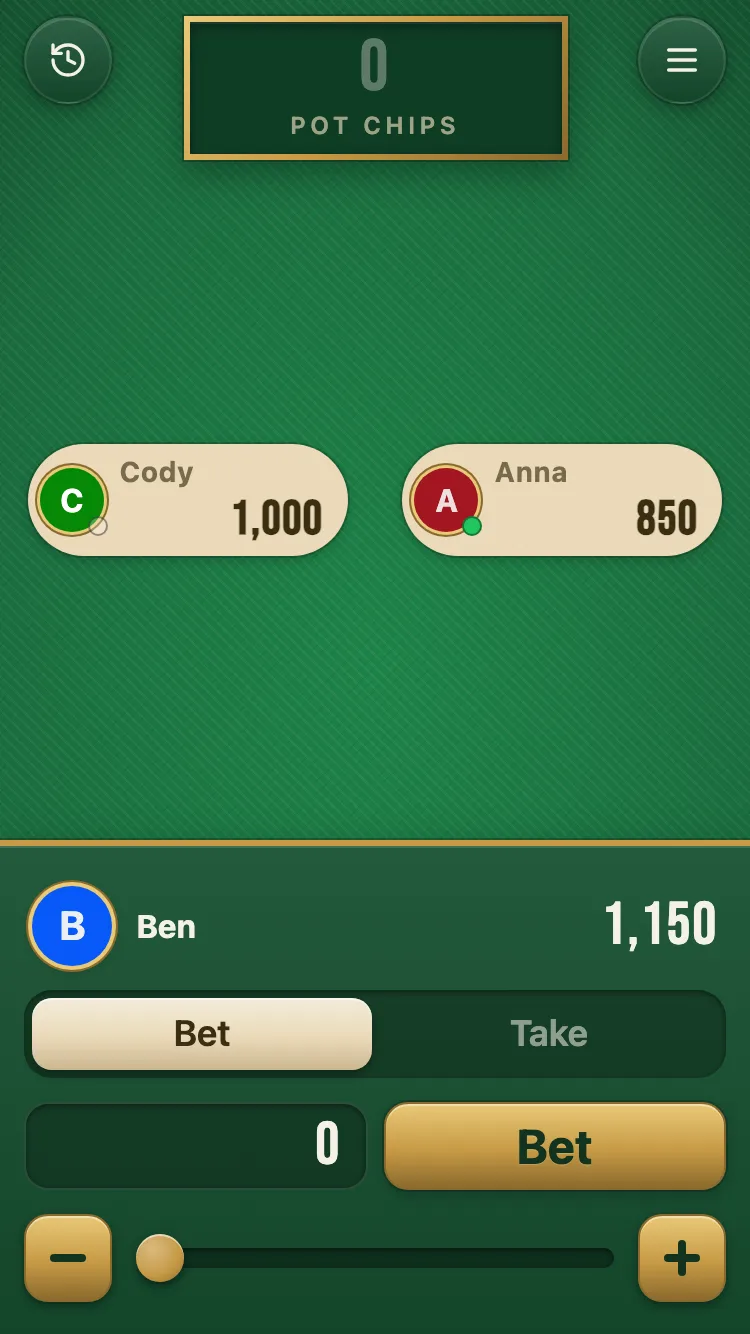
5. Bet or take chips
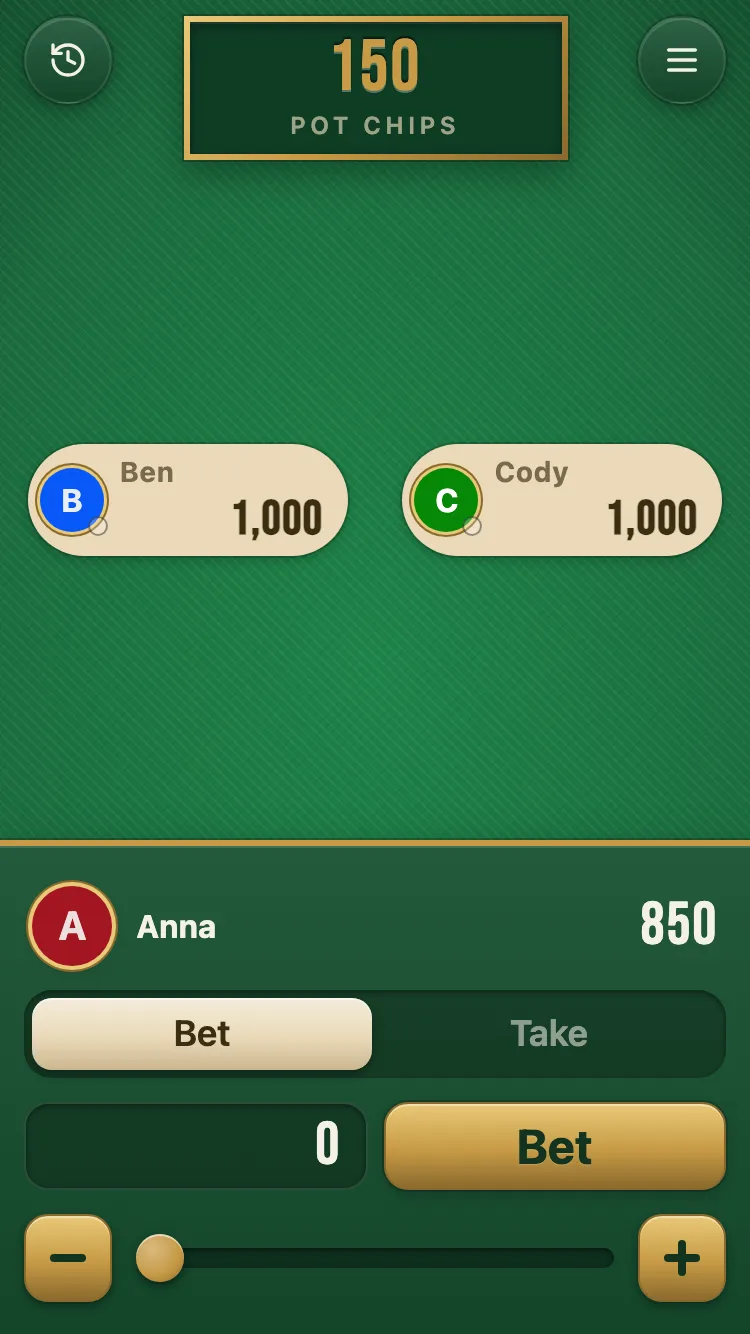
Picking a player takes you to the play screen. Use the panel at the bottom to switch between "Bet" and "Take", choose an amount with the +/- buttons or slider, and tap the button. Chips move between you and the center pot at the top, and everyone at the table sees the update instantly.
-
6. Manage players in Player Settings
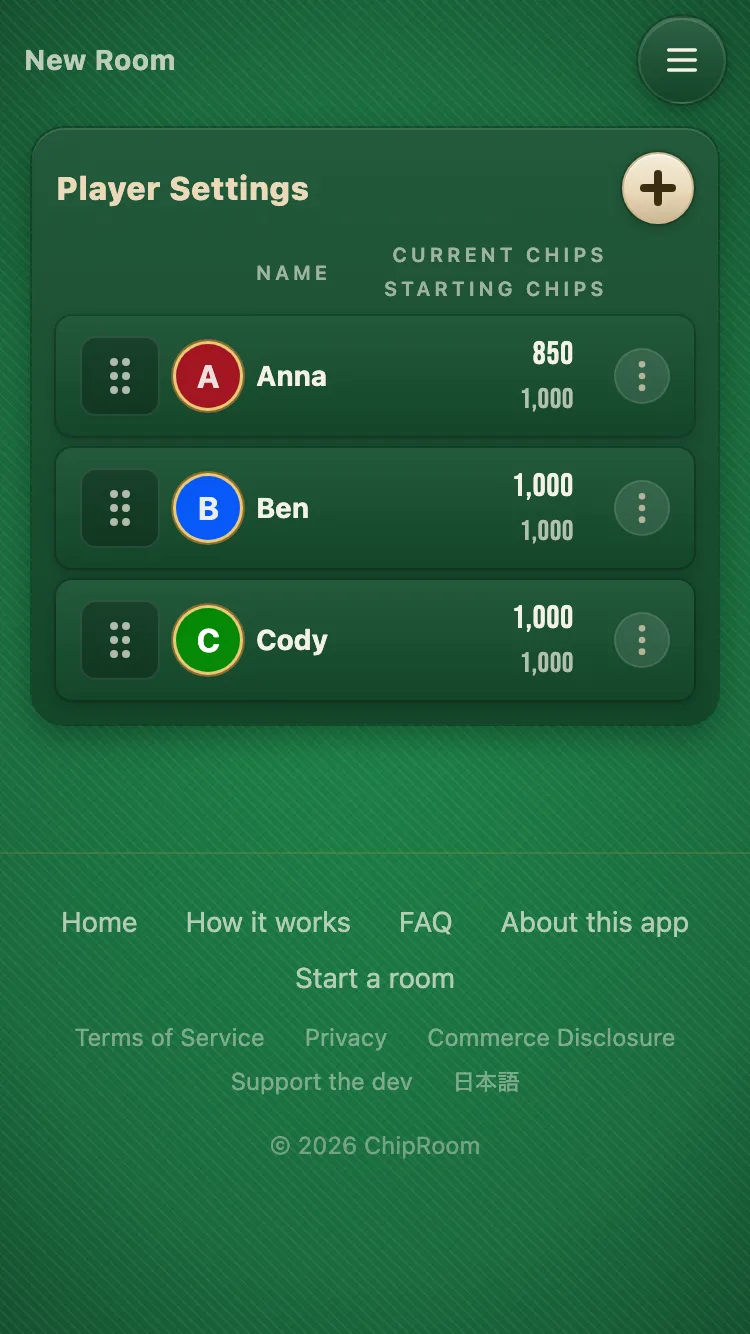
Open "Player Settings" from the menu to manage everyone registered in the room. Drag the handle on the left to reorder players, or tap the + button in the top right to add a new player at any time. Each player's button on the right also lets you freely adjust their current chips or starting chips.
-
7. Start the next game
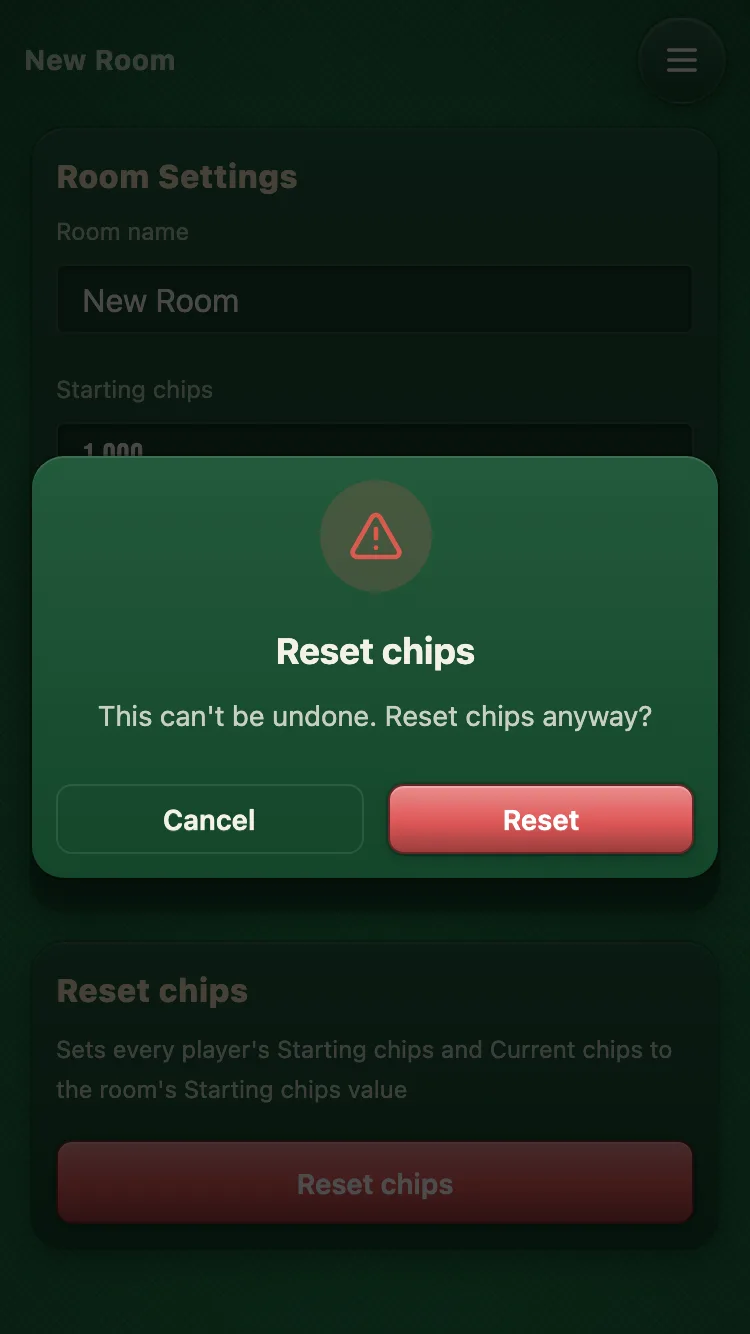
When a game ends, open "Room Settings" from the menu and tap "Reset Chips" under "Reset Chips". Every player's chips go back to the starting count from step 2. You can keep starting new games at the same URL for as long as you like.
For players: once you've been invited
This is everything a player needs to do — just three steps. Read this once you've been invited.
-
1. Open the shared URL
Tap the link your host sent you, or scan their QR code with your camera. No app install and no sign-up required.
-
2. Pick your name
On the player-select screen, tap your own name from the list. If it's not there, add it yourself with "Join as a new player".
-
3. Bet or take chips
Picking your name takes you to the play screen. Use the panel at the bottom to switch between "Bet" and "Take", choose an amount, and tap the button. Everyone at the table sees your move instantly.